You’ve just followed the setup guide and have a freshly updated MiSTer. Next, you’ll want to enable network access so can copy games/files and remotely configure your MiSTer. Here’s how.
Network Connection
Although the MiSTer supports some Wi-Fi USB modules, the simplest option is wired Ethernet. Simply plug a network patch cable into the MiSTer’s RJ45 socket and an IP address will be configured automatically.
Finding the IP Address
The assigned IP address will vary from network to network, and you’ll need to navigate some menus to find it:
-
On power up, the MiSTer will display the Cores menu.
-
From here, hit Esc the access System Setting and then Left Arrow to show Misc. Options
-
If networking is setup correctly, you’ll see the IP address (in this case 192.168.100.45):

Make a note of this address. You’ll need it below.
Shell access
For advanced MiSTer configuration, you’ll need remote console access. We’ll use Secure Shell (SSH), which MiSTer has enabled by default. Here’s how:
-
Download PuTTY, a popular and multiplatform SSH client
-
Setup an SSH connection with the following details:
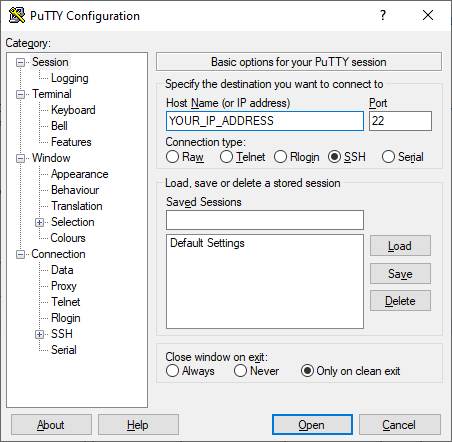
- Hit Open. When prompted for a username enter
rootand for the password enter1
Now you’re succesfully logged in, you can navigate the MiSTer file system. Some useful locations:
/media/fat |
Micro SD card |
/media/fat/_Arcade |
Upload Arcade cores here |
/media/fat/_Computer |
Upload Computer cores here |
/media/fat/_Console |
Upload Console cores here |
/media/fat/config |
Per core configs. Generated by each core as you use them |
/media/fat/games |
Upload games/ROMs/images here |
/media/fat/MiSTer.ini |
MiSTer global config e.g. to change video mode / overscan |
Copying files
You can use FTP or SFTP to remotely copy games and files to/from the MiSTer. Here’s how:
-
Download and install FileZilla, a free and popular file transfer client
-
Choose File -> Site Manager. Hit New site and setup a connection with the following details:
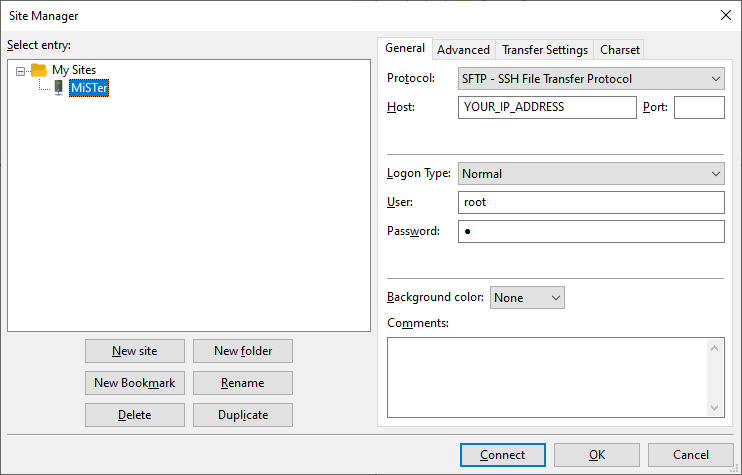
As before, the username is root and the password is 1
-
Navigate to
/media/fat/games. This is where MiSTer stores all games/ROMs/imags for each core. Drag and drop files to copy -
Close FileZilla once done
That’s the basics! Now you’re ready to use some cores. I hope to publish some deep-dives soon. In the meantime find the list of cores on the excellent MiSTer wiki.
Comments