Ethernet - probably the quickest and most convenient way to transfer files between your PC and ST.
What do you need?
- An Atari ST Ethernet adapter. You can pick up the awesome NetUSBee here for EUR60.
- A Cat5 or Cat6 Ethernet cable
- An ST-compatible floppy disk
Step 1. Connect your PC and ST together
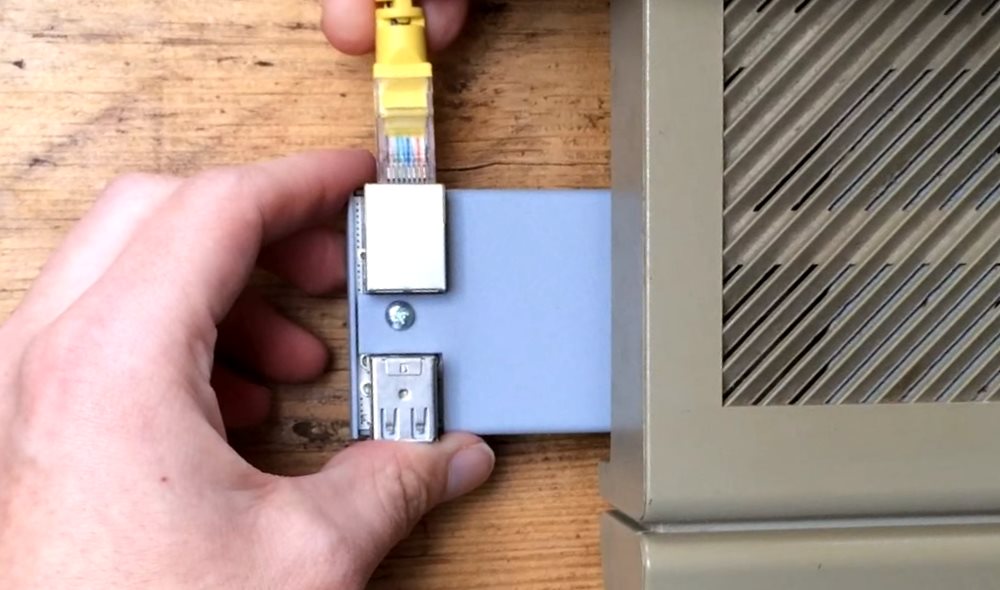
- Plug the NetUSBee into your ST’s cartridge port (usually on the left-hand side)
- Connect one end of the Ethernet cable into the NetUSBee. The other end should connect to your switch/router or (in advanced cases) to your PC’s NIC directly.
Step 2. Download and prepare uip-tool
Typically, you’ll need some Ethernet drivers and a TCP/IP stack for your Atari ST before it can talk to your PC. But luckily for us, there’s a super easy click-and-run solution out there called uip-tool. Here’s how to get started:
- Download a copy of uip-tool from here. The file you want is
UIPV43.TOS. - Copy the file onto your ST-compatible floppy
Step 3. Launch uip-tool
Pop the floppy disk in your ST and power on. Launch UIPV43.TOS. You should see something like this:

Make a note of the IP address (in this case 192.168.1.168). You’ll need this to transfer files. If you don’t see an IP address, it might be that DHCP isn’t properly configured on your network.
Step 4. Use your browser to connect to your ST
Back on the PC, launch a Web browser (any will do) and navigate to http://[your.ip.address] - for our example case it’s http://192.168.1.168. All going well, you’ll see the uip-tool web interface:
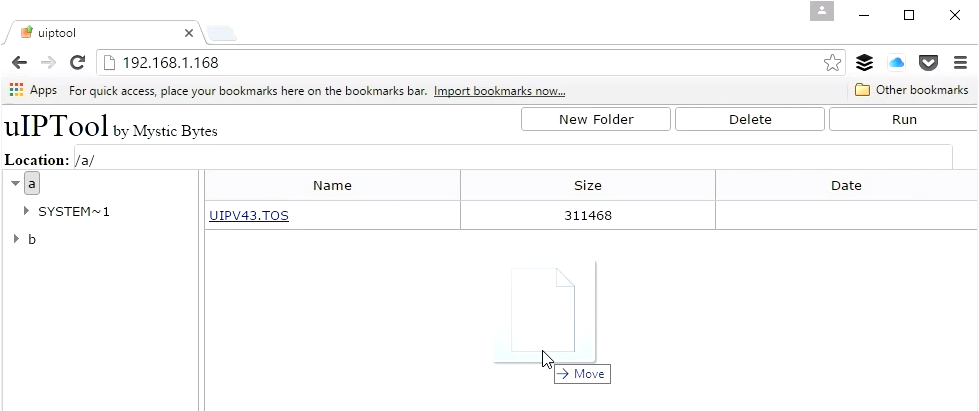
Use the leftmost column to navigate through drives and folders in the ST’s file system. Files are displayed in the main column. To upload a file, simply drag-and-drop (shown above). That’s it! Easy peasy.
More Atari ST Posts
- Lotus Esprit Turbo Challenge Enhanced for Atari STE - 17 Apr 2021
- Games With MIDI. The Atari ST Never Sounded So Good! - 19 Jun 2019
- Atari in the Attic - 15 Aug 2015

